The app on Haiku
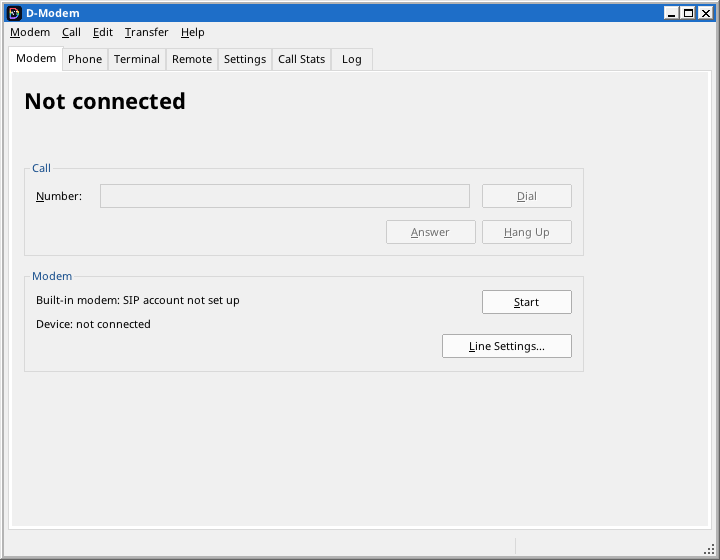
The Windows app also runs on Haiku (x86_64). The app is the same Win32 source code. It runs over the portable Win32 layer of clang-retro MFC, which shows the windows with Haiku's Interface Kit. The built-in modem is in the app, as on the other systems.
Requirements
- Haiku R1/beta6 or later, x86_64. The app was tested on R1/beta6.
- libusb. In a Terminal, type
pkgman install libusb.
Install
- Download
dmodem-win32-haiku-x86_64.tar.gzfrom the nightly release. - Open a Terminal in the download folder.
- Extract the file. Type
tar -xzf dmodem-win32-haiku-x86_64.tar.gz. - Start the app. Type
./dmodem-win32.
The app keeps its settings in ~/config/settings/libmfc.
Build
You build the app on Linux. The build uses the system's clang and a sysroot that has Haiku's own packages.
- Install the tools. On Ubuntu 24.04, type
sudo apt install cmake ninja-build clang lld llvm libzstd1 python3. - Get clang-retro MFC and the
D-Modem submodule (
git submodule update --init). -
Make the sysroot. The script downloads Haiku's packages and examines them against the SHA-256 of their repositories:
python3 external/D-Modem/platforms/haiku/haiku_sysroot.py haiku-sysroot -
Build the app:
cmake -S . -B build/haiku -G Ninja -DCMAKE_BUILD_TYPE=Release \
    -DCMAKE_TOOLCHAIN_FILE=$PWD/cmake/haiku.cmake \
    -DHAIKU_SYSROOT=$PWD/haiku-sysroot \
    -DDMODEM_GUI_WINPORT=ON -DCLANG_RETRO_MFC=/path/to/mfc
cmake --build build/haiku --target dmodem-win32
The app is build/haiku/winport/dmodem-win32. Copy it to the Haiku
computer.
cmake/haiku.cmake includes the toolchain file of D-Modem
(external/D-Modem/platforms/haiku/haiku.cmake). The CI job
winport-haiku (.github/workflows/build.yml) does these steps. It does
not start the app.
Serial ports and modems
Haiku keeps the serial ports in /dev/ports:
pc_serial0,pc_serial1and on are the serial ports of the computer.usb0,usb1and on are the USB serial adapters and the CDC-ACM USB modems. Haiku'susb_serialdriver makes these ports.
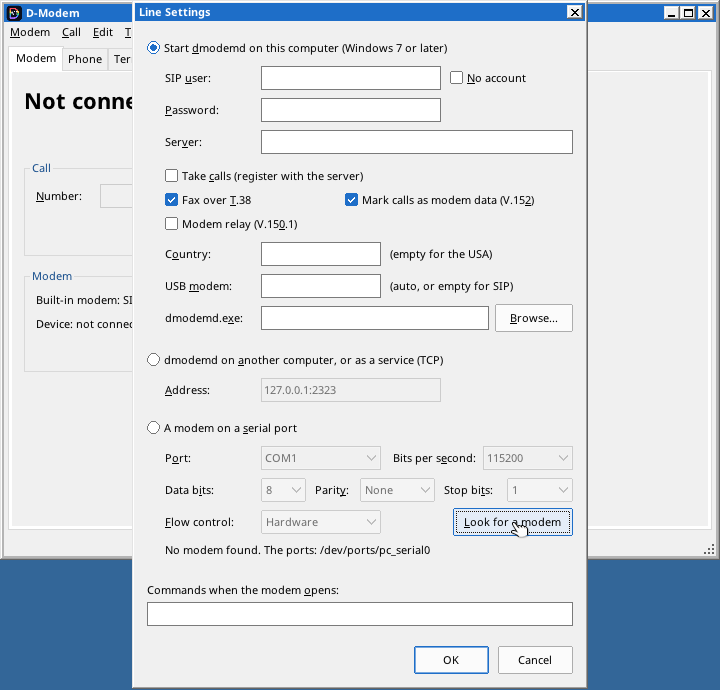
In Line settings, the Port list shows the ports of /dev/ports,
for example /dev/ports/usb0. You can also type COM1 (the first port
by name), COM2 (the second port), and so on.
Look for a modem does these steps:
- It finds the ports in
/dev/ports. - It finds the USB devices with Haiku's USB Kit. It gives each
usbNport the name of its device (the maker and the product). - If a CDC-ACM device tells that it takes AT commands, the app selects its port as the modem.
Haiku has no driver for the MultiTech MT9234MU. If you connect this modem, Look for a modem tells you that Haiku cannot use it. Use a modem with a serial port, or a CDC-ACM USB modem.
Keys
The keys are those of a PC keyboard:
| Key on the keyboard | Key in the app |
|---|---|
| Control | Control. For example, Control+C copies. |
| Alt (Haiku's Command key, by default) | Alt. For example, Alt+M opens the Modem menu. |
| Windows (Haiku's Option key) | Windows |
Limits
- The app has no sound on Haiku. The Phone page cannot play or record the call.
- The app cannot print. Only "Save as PDF" is available.
- The Deskbar shows a generic icon for the app.
- The USB modems were not tested on Haiku yet. QEMU's USB serial adapter does not operate with Haiku, so the tests used the serial port of the computer only.